
4. Creating/Exporting a Custom Analyzer (Pro)
Teach Media Audit Pro™ to find media used by an extension that has no official Analyzer — without writing code.
The Custom Analyzer Builder lets you teach Media Audit Pro™ where an extension stores links to its media. You do not write PHP or SQL, but you do need a basic understanding of database tables, records, and fields so you can tell MAP where to look and how to recognize a media path.
The screen is at Components → Media Audit → Custom Analyzers → New and is arranged as four tabs:
- Analyzer — identify and document the Analyzer.
- Media Discovery — tell MAP which table and fields contain media.
- Asset Intelligence — optionally add the information AIE needs to understand how that media is used.
- Test & Export — test the configuration against live data and export the finished Analyzer as a Joomla plugin.
Before you start
Make one good test record
This is the single best thing you can do to make building an Analyzer fast and predictable. Find — or create — one record with a real image in every media field the extension offers.
The Builder shows live data from your own site. If a record has four possible image fields but only one is filled in, an empty field can look exactly like a field you mapped incorrectly. A fully populated test record removes that ambiguity.
If you create a record specifically for testing, give it an obvious title such as Test and note its record ID. Keep it around. It gives you a reliable record to use later when the extension updates and you want to confirm that the Analyzer still works. The record does not need to be published unless you also want to test Asset Intelligence against it on the front end.
Use real images, not made-up filenames
Use files that really exist on the site. A made-up path can make the Builder appear to work perfectly: it reads the field, extracts the path, and shows it back to you. Check Configuration may even confirm that the mapping itself is valid. But the Inspector inventories real files, so a path to a file that does not exist can never appear there.
Point your test record to images that genuinely exist. Anything already in /images is fine. The test record does not need to look like real content; it only needs to behave like it. Using real files lets you follow a finding all the way from the database through to the Inspector and confirm that the Analyzer works.
Tab 1 — Analyzer
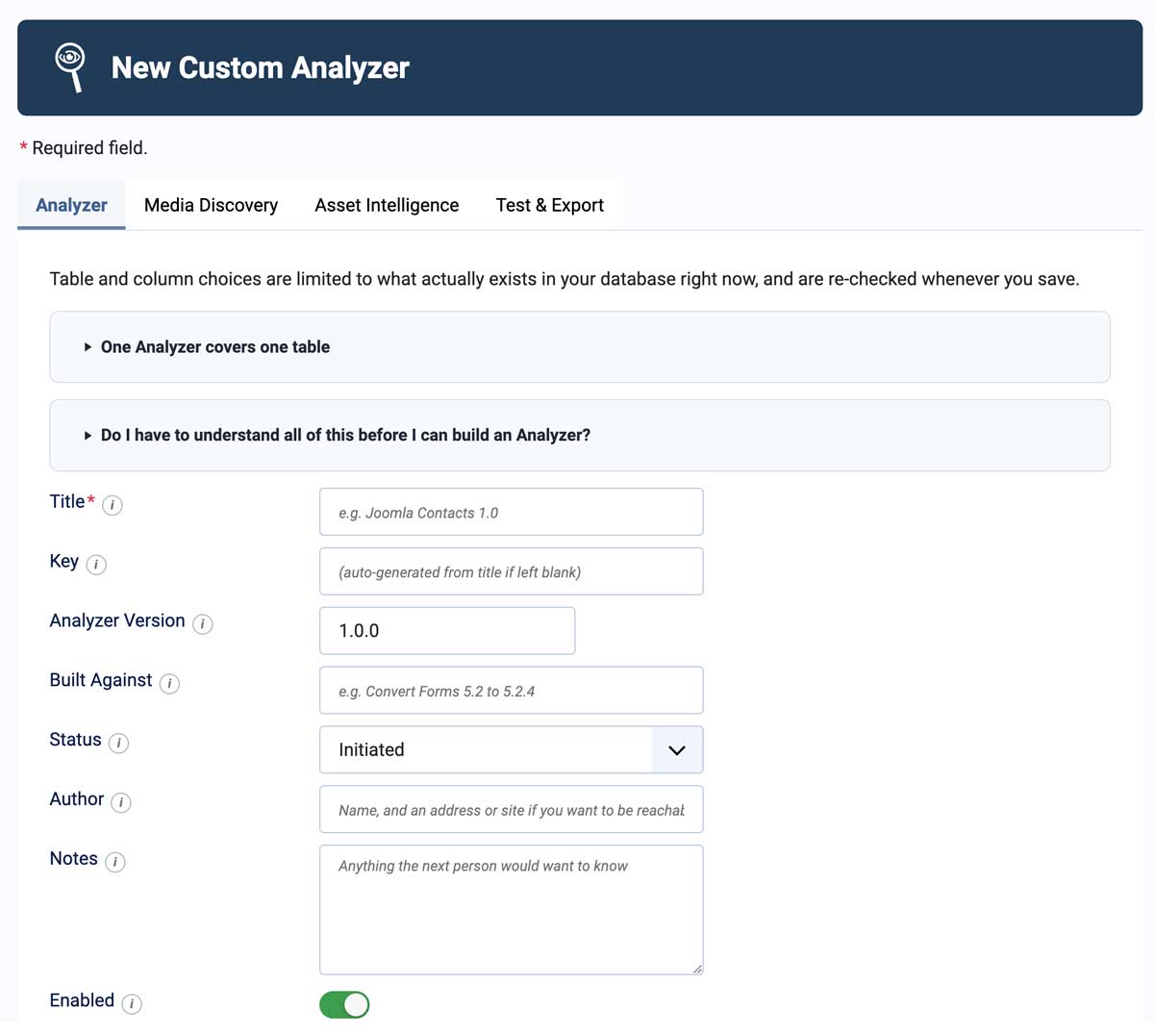
The Analyzer tab identifies the Analyzer and records its version, status, author, and notes.
This tab is mostly for identification and record-keeping. Good notes become increasingly useful once you have several Custom Analyzers or revisit one after an extension update.
Title *
The descriptive name of the Analyzer. Name it for the extension or feature it reads, such as Joomla Contacts or Convert Forms. Do not confuse this with Title Column on the Media Discovery tab, which refers to a field in the extension's database table.
Key
A short, unique machine name. Leave it blank to generate one automatically from the Title.
Analyzer Version
The version of this Analyzer, not the version of the extension it supports. Increase it whenever you revise how the Analyzer works.
Built Against
Record the extension version or range you used while building and testing the Analyzer, for example Convert Forms 5.2 to 5.2.4.
Extensions sometimes change where or how they store data. Recording the version you tested against makes it much easier to tell whether an Analyzer is misconfigured or simply needs to be reviewed for a newer extension version.
Status
Use Initiated, Testing, or Confirmed to record how thoroughly you have verified the Analyzer.
Setting the status to Confirmed records the confirmation date. That gives you useful context later: "Confirmed on 25 August 2026 against Convert Forms 5.2.4" remains meaningful even after the extension has moved on to a newer version.
Author
The name and contact information for whoever built the Analyzer. This information is included in an exported plugin. If left blank, the export falls back to your site's name.
Notes
Record anything worth remembering: why the Analyzer exists, unusual database behavior, assumptions you made, or approaches that did not work. These notes are especially useful when you return to the Analyzer months later.
Enabled
Controls whether the Analyzer runs. Disable it when you want to keep an Analyzer without including it in Media Discovery.
Tab 2 — Media Discovery
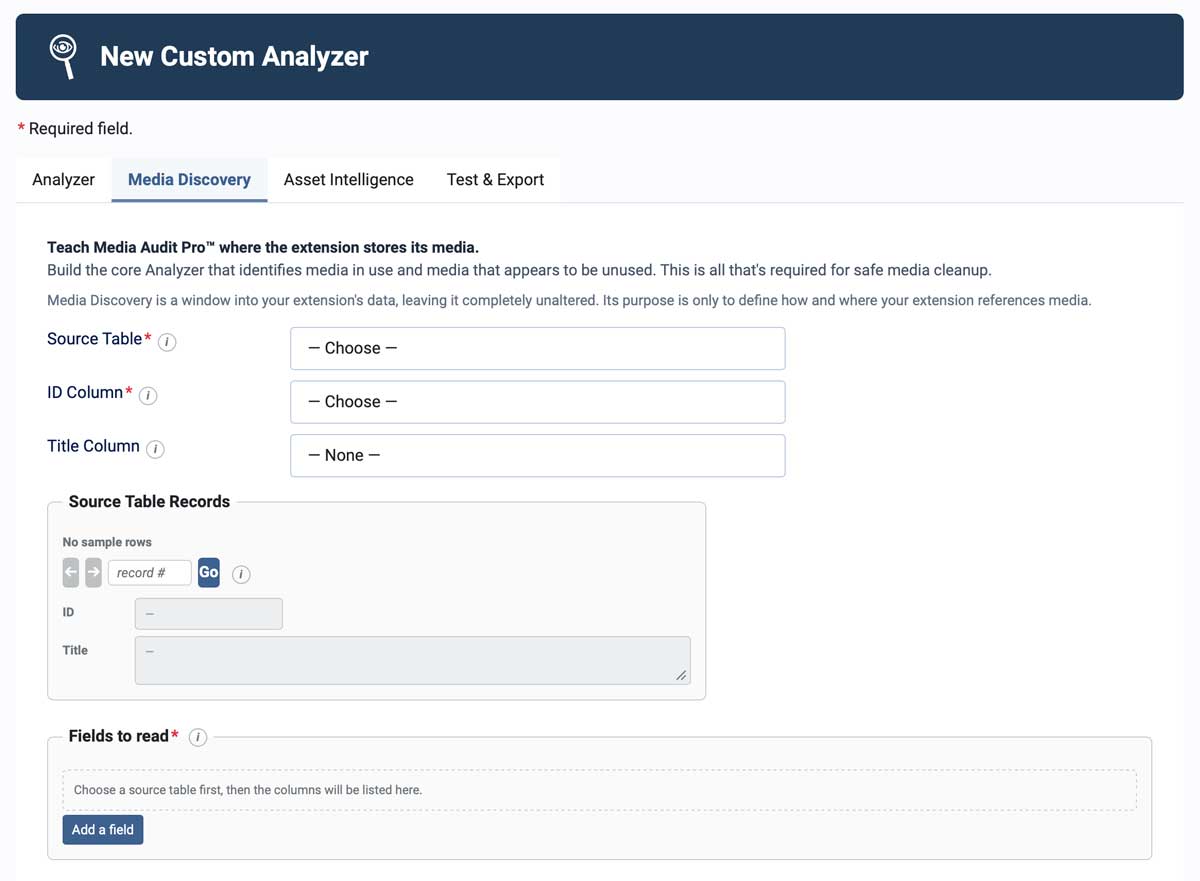
Media Discovery before a source table is selected.
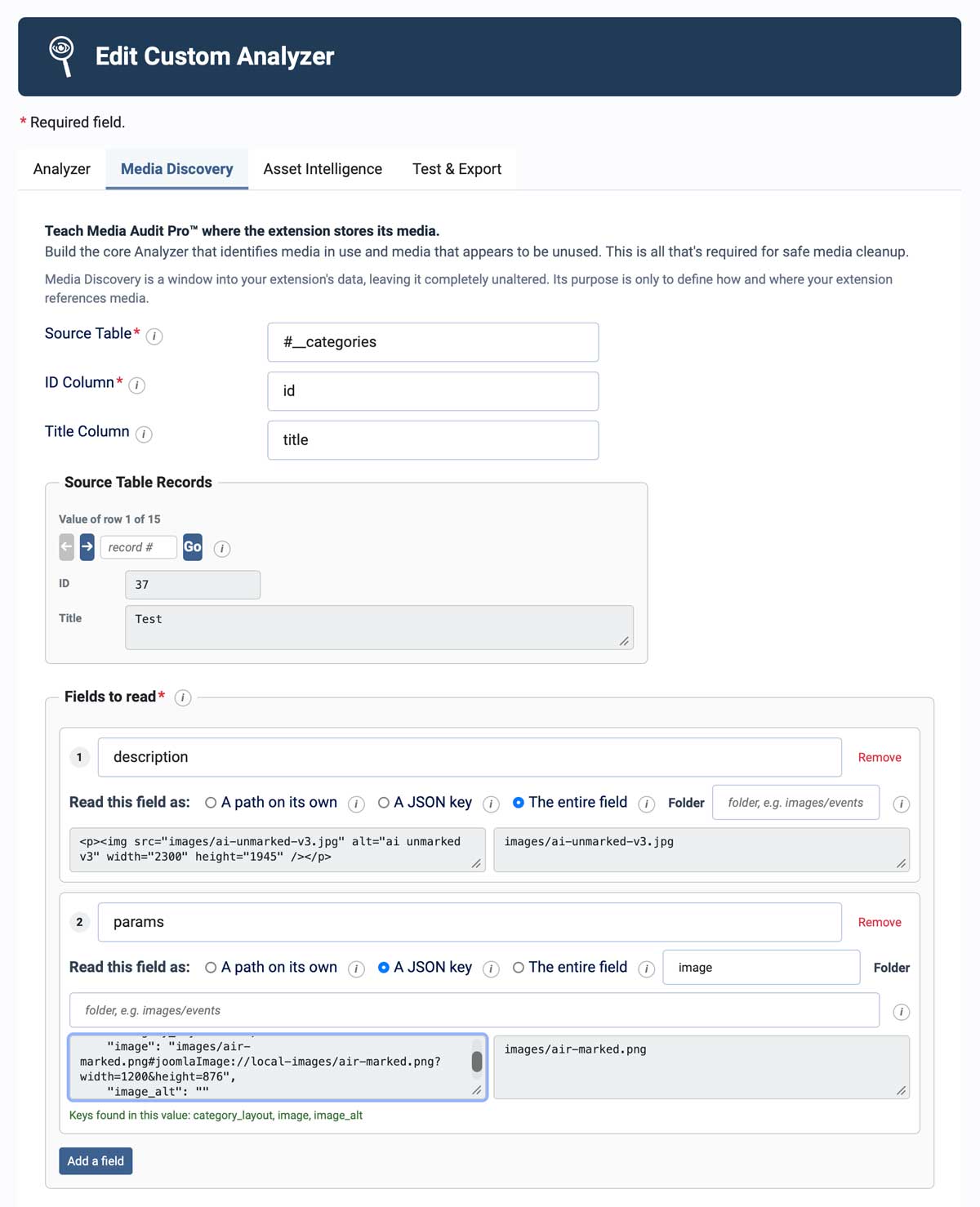
Media Discovery connected to an extension table with two mapped media fields and live sample data.
Media Discovery is where you teach Media Audit Pro where the extension stores its media.
This is the core of the Analyzer. Once Media Discovery is working, MAP can identify media used by this extension and include it when determining which files appear to be unused. You can stop here and have a fully useful Analyzer.
Source Table *
Select the database table that stores the extension's records. Table names are shown without your site's Joomla database prefix. If the Builder shows myextension_data, the actual table is (yourprefix)_myextension_data.
The table name is often but not always the same name as the extension; it's not uncommon for extension names to evolve and improve during their lifetime, but it's very difficult to rename certain extension aspects, like the table names.
ID Column *
Select the table's unique record ID, usually id. Do not automatically choose asset_id; in Joomla that usually serves a different purpose.
Title Column
Select a field containing a short, recognizable title for each record, such as title, name, or label. MAP uses this only to make reports easier to understand. Leave it set to None if the table has no useful title field.
Source Table Records
This panel gives you a live look at one record from the selected table so you can see the data you are mapping. It shows the record ID and title, and the ← → buttons move through the fifteen most recent records.
If the record you want is older, enter its ID in the Record # box and press Go. This is why making one clearly named, fully populated test record is so useful.
Nothing in this panel is saved. It is a window into your live data, not a configuration setting.
Fields to read *
Add each field that may contain media. Many extensions store images in more than one place — for example a featured image in one field and editor content in another. Use Add a field for each source MAP should check.
- Column — the database field to read.
- Read this field as — tells MAP how to interpret the value stored in that field:
- A path on its own — the entire field value is one media path and nothing else. This is the simplest and most exact choice: one value points to one asset.
- A JSON key — reads one named key from a JSON value as a media path. This precisely attributes the finding to that key rather than searching everything stored in the field.
- The entire field — searches the whole value and collects every recognizable media path it finds in markup, links, CSS, shortcodes, bare paths, page-builder data, and other embedded content.
- Folder — use when the stored value is only a filename and the folder is known separately. Folder is available with any of the three reading methods.
- Role — an optional descriptive label for the field. It does not change what MAP finds.
What "the entire field" actually does
The entire field tells MAP to search the complete value rather than expect one media path at a specific location. It can find image tags, links, CSS background images, gallery shortcodes, and plain images/… paths embedded in the field.
This is also useful for page builders and other extensions that store complex layouts in JSON. If media can appear under changing or deeply nested keys, there may be no single JSON key you can name. The entire field needs no key and searches the whole value instead.
Which reading do I need?
| What the column holds | Read this field as |
|---|---|
| A plain media path | A path on its own |
| A filename with no folder | A path on its own + Folder |
| JSON with the media path at a named top-level key | A JSON key |
| A JSON key whose value is itself a group of settings, such as desktop, tablet, and mobile variants | The entire field |
| Markup, editor content, or a page-builder layout, JSON or otherwise | The entire field |
A Joomla category or article image stored in params |
A JSON key, key image |
If a named JSON key contains another group of settings rather than the media path itself, A JSON key cannot reach down another level. Use The entire field so MAP can find the media paths within that group.
If you are unsure which reading fits the data, run Check Configuration. It reads real records and helps identify what the selected field actually contains.
When either would work, prefer the JSON key
Sometimes A JSON key and The entire field can both find the same path. Joomla's category params field is a good example: A JSON key with the key image finds the image directly, while The entire field can also discover the path by searching everything stored in the field.
Prefer the JSON key when you have a reliable one. It is more precise because it reads only the value you identified. The entire field searches everything and may also find media belonging to other roles in the same data.
It is also more efficient. Reading one named JSON value requires much less work than searching an entire block of markup or page-builder data. On ordinary settings fields the difference is negligible, but it can matter when very large fields are searched across thousands of records.
Upgrading from JSON + HTML
If you created a Custom Analyzer with an earlier version of the Builder, there is nothing you need to reconfigure. Definitions saved with both JSON and HTML selected are automatically read as The entire field. That reflects the behavior that was already determining the result when both options were enabled.
Existing exported Analyzer plugins continue to work as before. The new choices simply make the Builder's field-reading behavior clearer when you create or edit an Analyzer.
Joomla's #joomlaImage:// suffix
Joomla may store an image value that looks like this:
images/air-marked.png#joomlaImage://local-images/air-marked.png?width=1200&height=876
The actual file is still images/air-marked.png. Joomla appends additional metadata, including dimensions. Media Audit Pro trims everything after the media path automatically, including Joomla image metadata and ordinary query strings such as ?v=3. No special configuration is required.
Tab 3 — Asset Intelligence (Optional)
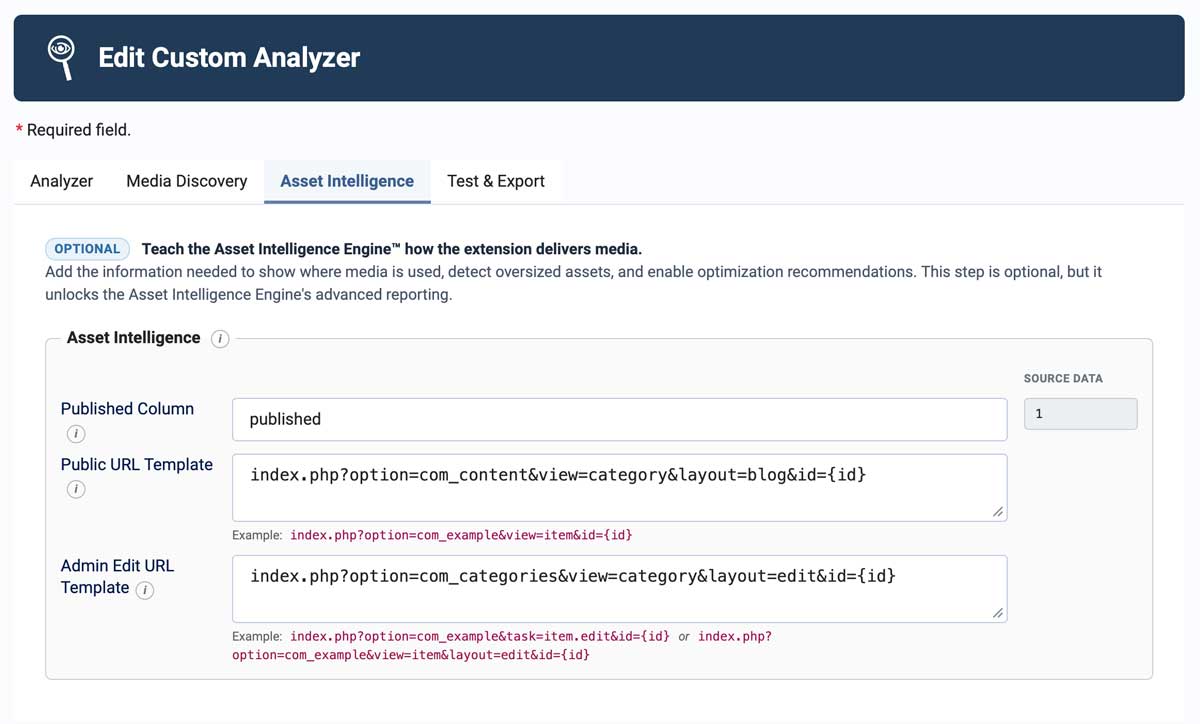
A Media Discovery-only Analyzer is already complete. Asset Intelligence adds the information needed for deeper usage reporting and optimization.
Add Asset Intelligence after Media Discovery is working if you want deeper usage details and optimization support.
Asset Intelligence is more advanced than Media Discovery, and there is no reason to block a useful Analyzer while you work it out. Get Media Discovery working first. Then add this information if you want the additional payoff.
The Source Data column shows the live value from the record selected on the Media Discovery tab so you can compare your settings with real data as you work.
Published Column
Select the field that records whether a source record is published. If provided, MAP can distinguish media attached to content that is currently available from media attached to unpublished, archived, or trashed records. Leave it blank if the extension does not provide a useful publication state.
Joomla commonly uses 1 for published, 0 for unpublished, 2 for archived, and -2 for trashed. Only 1 is treated as published.
Public URL Template
Use this when the extension has a predictable public URL for each record. It lets MAP connect a finding with the front-end page where that record appears. Some extensions do not have a public page of their own, so this field is optional.
Open one of the extension's records on the front end, copy its non-SEF URL, and replace the record ID with {id}. If your site uses SEF URLs, the raw URL can often be found in the Link field of the item's Joomla Menu Item.
Admin Edit URL Template
This lets the Inspector link directly to the Joomla administrator screen where the source record can be edited. It is optional; Media Discovery still works without it.
Open a record for editing in the administrator, copy its URL, remove everything up to and including administrator/, and replace the record ID with {id}. Joomla extensions use several URL patterns, so use the URL your own site provides rather than trying to match an example exactly.
Tab 4 — Test & Export
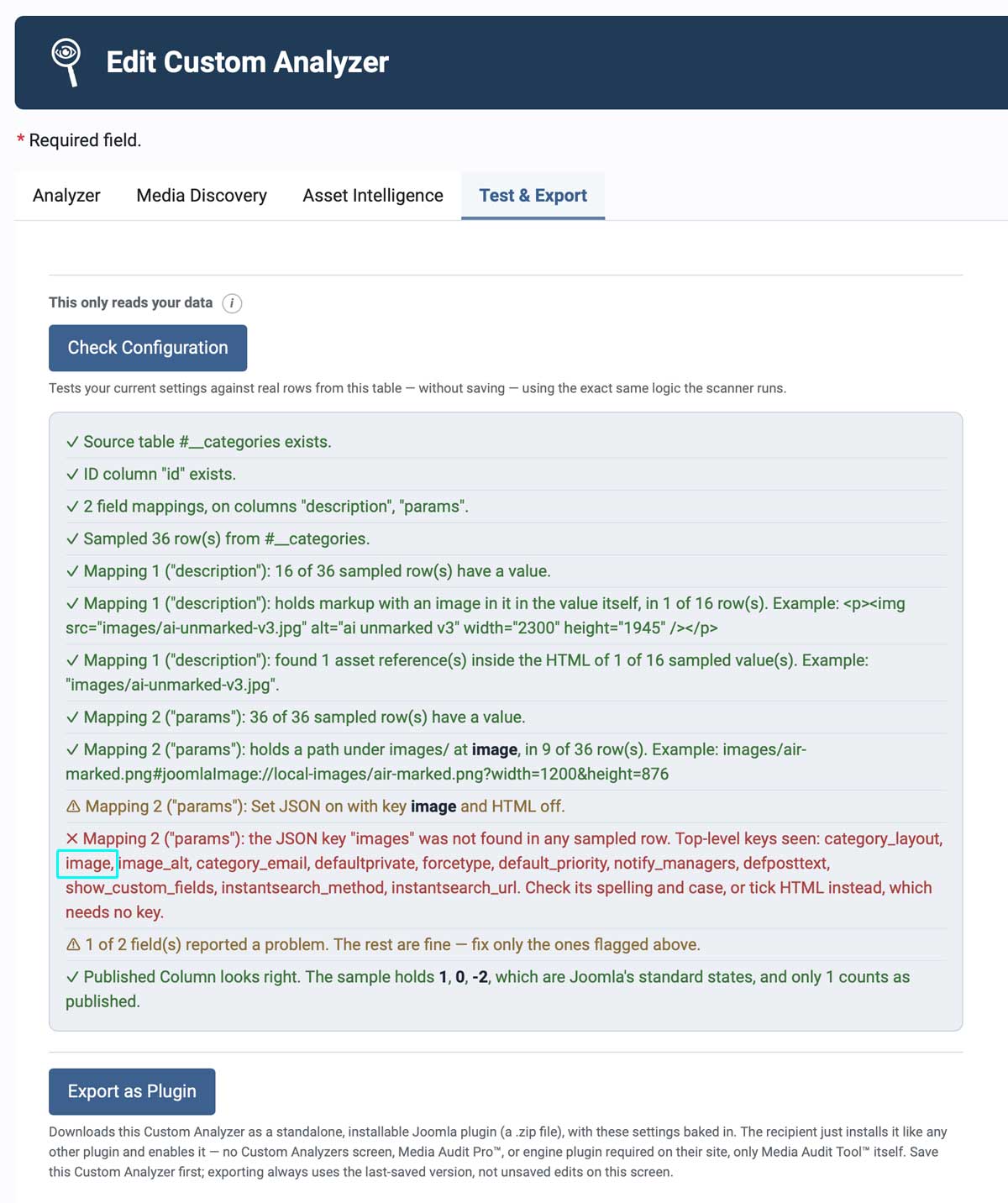
Here the Analyzer was configured with the JSON key images, but the live data contains no key by that name. Check Configuration shows the available choices, including image.
Changing the key from images to image and running the check again resolves the error.
Test the Analyzer against live data, correct any configuration problems, then export it when you are ready.
Check Configuration
Check Configuration tests the current settings against real records from the selected table without changing your data. It uses the same discovery logic the Analyzer will use, so you can catch mistakes before relying on the results.
The checker first looks at what your data actually contains, then evaluates whether the configuration can read it correctly. Results are reported at four levels:
- ✓ — configured correctly.
- ℹ — useful information; no action is required.
- ⚠ — something should be reviewed or changed.
- ✗ — this part will not work as currently configured.
A typical clean run:
✓ Source table exists and has 36 rows.✓ ID Column id contains unique values.ℹ Mapping 2 (params): the key image is filled in on 9 of the 36 sampled records. The rest have no image set, which is normal.✓ Published Column looks right. The sample holds 1, 0, -2, which are Joomla's standard states, and only 1 counts as published.✓ All 2 fields resolved against real data.
Once the configuration passes and the findings match what you expect from your test record, you have meaningful evidence that the Analyzer is working. That is a good time to change Status on the first tab to Confirmed.
Export as Plugin
Export downloads the Custom Analyzer as a standalone Joomla plugin with its settings built in. The recipient installs and enables it like any other Joomla plugin. They do not need access to the Custom Analyzer Builder; the exported Analyzer can run with Media Audit Tool™ itself.
Worked examples
A plain path column
An extension stores one image per record in a column named image, containing a value such as images/products/widget.jpg.
- Source Table: the extension's table
- ID Column:
id - Fields to read: Column
image, read as A path on its own, Folder empty
Run Check Configuration. If it reports a valid media path, Media Discovery is complete. Nothing else is required for safe media cleanup.
A path at a JSON key
A Joomla category stores its image in params:
{"category_layout":"","image":"images\/air-marked.png#joomlaImage:\/\/local-images\/air-marked.png?width=1200&height=876","image_alt":""}
- Source Table:
categories - ID Column:
id - Title Column:
title - Fields to read: Column
params, read as A JSON key, keyimage
The #joomlaImage:// suffix is trimmed automatically. Add another field row for description, read as The entire field, if images may also appear in the category description.
Markup buried in JSON — Convert Forms
Convert Forms stores a complete form as JSON, with field content nested several levels deep beneath keys that can vary from record to record, such as fields → fields3 → text. Because that generated key changes, there is no single JSON key you can enter to reach the media reliably.
- Source Table:
convertforms_forms - ID Column:
id - Fields to read: the field containing the form definition, read as The entire field
The entire field searches the complete value, so it can find media paths regardless of how deeply they are nested or what the generated keys are called. This is a good example of a case where selecting A JSON key and guessing a key may look intuitive but cannot describe the data accurately.
Media Audit Pro™ — Creating a Custom Analyzer.
Covers Components → Media Audit → Custom Analyzers → New: the Analyzer, Media Discovery, Asset Intelligence, and Test & Export tabs.