

Creating/Exporting a Custom Analyzer (Pro)
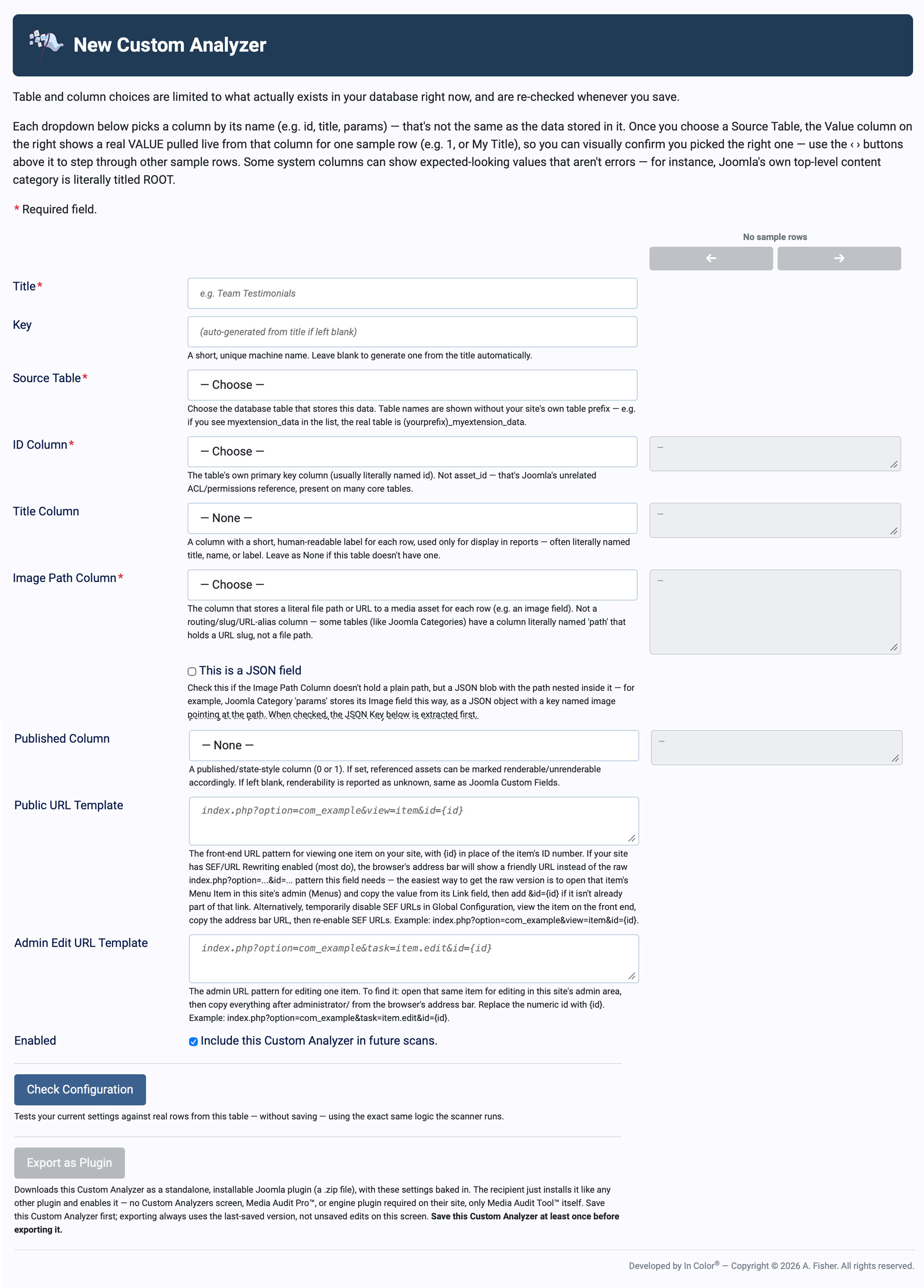
Custom Analyzers let you teach Media Audit Pro™ how to find media references in an extension that doesn't have an official Analyzer — without writing any code. You point MAP at the database table and columns where that extension stores its data, and MAP does the rest. This screen is found under Components → Media Audit → Custom Analyzers → New.
Before You Start
- The Source Table and column dropdowns are populated from what actually exists in your database right now, and are re-checked every time you save. If an extension is later uninstalled or its table changes, your Custom Analyzer may need attention on its next save.
- Each dropdown picks a column by name (for example,
id,title,params) — that's not the same thing as the data stored in it. Once you choose a Source Table, the Value box next to each dropdown shows a real value pulled live from that column for one sample row, so you can visually confirm you picked the right one. Use the ‹ › buttons above the Value boxes to step through other sample rows for visual confirmation. - Some system columns can show expected-looking values that aren't errors. For example, Joomla's own top-level content category is literally titled ROOT — if you see that in a Value preview, it's correct, not a bug in your configuration.
Fields
Title *
The display name for this Custom Analyzer, e.g. Team Testimonials.
Key
A short, unique machine name. Leave blank to auto-generate one from the Title (e.g. a Title of "Team Testimonials" becomes a key like team-testimonials).
Source Table *
The database table that stores this extension's data. Table names are shown without your site's own table prefix — if you see myextension_data in the list, the real table is (yourprefix)_myextension_data.
ID Column *
The table's own primary key column, usually literally named id. This is not asset_id — that's Joomla's unrelated ACL/permissions reference, present on many core tables, and picking it will produce nonsensical results.
Title Column
A column with a short, human-readable label for each row, used only for display in reports — often literally named title, name, or label. Leave as None if the table doesn't have one.
Image Path Column *
The column that stores a literal file path or URL to a media asset for each row (e.g. an image field). This is not a routing/slug/URL-alias column — some tables (like Joomla Categories) have a column literally named path that holds a URL slug, not a file path. Check the Value preview to make sure you're seeing something that looks like a file path (e.g. images/team/jane.jpg), not a slug (e.g. about-us).
This is a JSON field
Check this box if the Image Path Column doesn't hold a plain path, but a JSON "blob" with the path nested inside it. For example, Joomla's Category params column stores its Image field this way, as a JSON object with a key named image pointing at the path (something like {"image":"images/banner.jpg","image_alt":""}). When checked, a JSON Key field appears so you can specify which key inside the JSON blob holds the path — in that example, you'd enter image.
Published Column
A published/state-style column (0 or 1). If set, referenced assets can be marked renderable or unrenderable accordingly. If left blank, renderability is reported as unknown — the same behavior as Joomla Custom Fields.
Public URL Template
The front-end URL pattern for viewing one item on your site, with {id} in place of the item's ID number, e.g. index.php?option=com_example&view=item&id={id}.
If your site has SEF/URL Rewriting enabled (most do), the browser's address bar shows a friendly URL instead of this raw pattern. To get the raw version:
- Open that item's Menu Item in this site's admin (Menus) and copy the value from its Link field, then add
&id={id}if it isn't already part of that link, or - Temporarily disable SEF URLs in Global Configuration, view the item on the front end, copy the address bar URL, then re-enable SEF URLs.
Admin Edit URL Template
The admin URL pattern for editing one item. To find it: open that same item for editing in this site's admin area, then copy everything after administrator/ from the browser's address bar, and replace the numeric id with {id}, e.g. index.php?option=com_example&task=item.edit&id={id}.
Enabled
Checked by default. Controls whether this Custom Analyzer is included in future scans.
Check Configuration
Click Check Configuration to test your current settings against real rows from the table — without saving — using the exact same logic the scanner runs. Use this together with the sample-row stepper before saving, so you catch a wrong column choice before it affects a real scan.
Export as Plugin
Downloads this Custom Analyzer as a standalone, installable Joomla plugin (a .zip file), with these settings baked in. The recipient just installs it like any other plugin and enables it — no Custom Analyzers screen or engine plugin required on their site, only Media Audit Pro™ itself. This is a convenient way to package an Analyzer you've built for reuse across other sites, or to share with someone else running MAP.
Save this Custom Analyzer at least once before exporting it — the button is disabled until the first save, and exporting always uses the last-saved version, not unsaved edits on the screen.
Worked Example: A Plain Path Column
Say you're running a fictional "Team Testimonials" extension that stores each testimonial in a table shown in the dropdown as testimonials_items (real table: (yourprefix)_testimonials_items), with columns id, name, headshot, and state. The headshot column holds a plain relative path like images/testimonials/jane.jpg.
- Title: Team Testimonials
- Key: (left blank — auto-generates to team-testimonials)
- Source Table: testimonials_items
- ID Column: id
- Title Column: name
- Image Path Column: headshot
- This is a JSON field: unchecked
- Published Column: state
- Public URL Template:
index.php?option=com_testimonials&view=item&id={id} - Admin Edit URL Template:
index.php?option=com_testimonials&task=item.edit&id={id} - Enabled: checked
Worked Example: A JSON-Nested Path Column
Now say you want an Analyzer for Joomla Categories' Image field, which is stored inside the params column as a JSON blob rather than its own column, e.g. {"image":"images/banner.jpg","image_alt":""}.
- Title: Category Images
- Source Table: categories
- ID Column: id
- Title Column: title
- Image Path Column: params
- This is a JSON field: checked
- JSON Key: image
- Published Column: published
- Public URL Template:
index.php?option=com_content&view=category&layout=blog&id={id} - Admin Edit URL Template:
index.php?option=com_categories&task=category.edit&id={id}&extension=com_content - Enabled: checked
Since the top-level category in every Joomla site is literally titled ROOT, don't be surprised if a sample-row preview shows that value while you're stepping through rows — it's expected, not a sign your Title Column is misconfigured.
Exporting
Once a Custom Analyzer is saved and working the way you want, use Export as Plugin to package it as an installable Joomla plugin. This is the easiest way to reuse an Analyzer you've built across multiple sites, or hand it to someone else running Media Audit Pro™ — they just install and enable the plugin, with no need to rebuild the configuration on the Custom Analyzers screen themselves.