

Options Reference
What each field on the Media Audit Options page does, and why it's set up that way by default.
1. Media Audit tab
This tab controls what Media Audit actually looks at when it builds its asset inventory and runs its orphan scan.
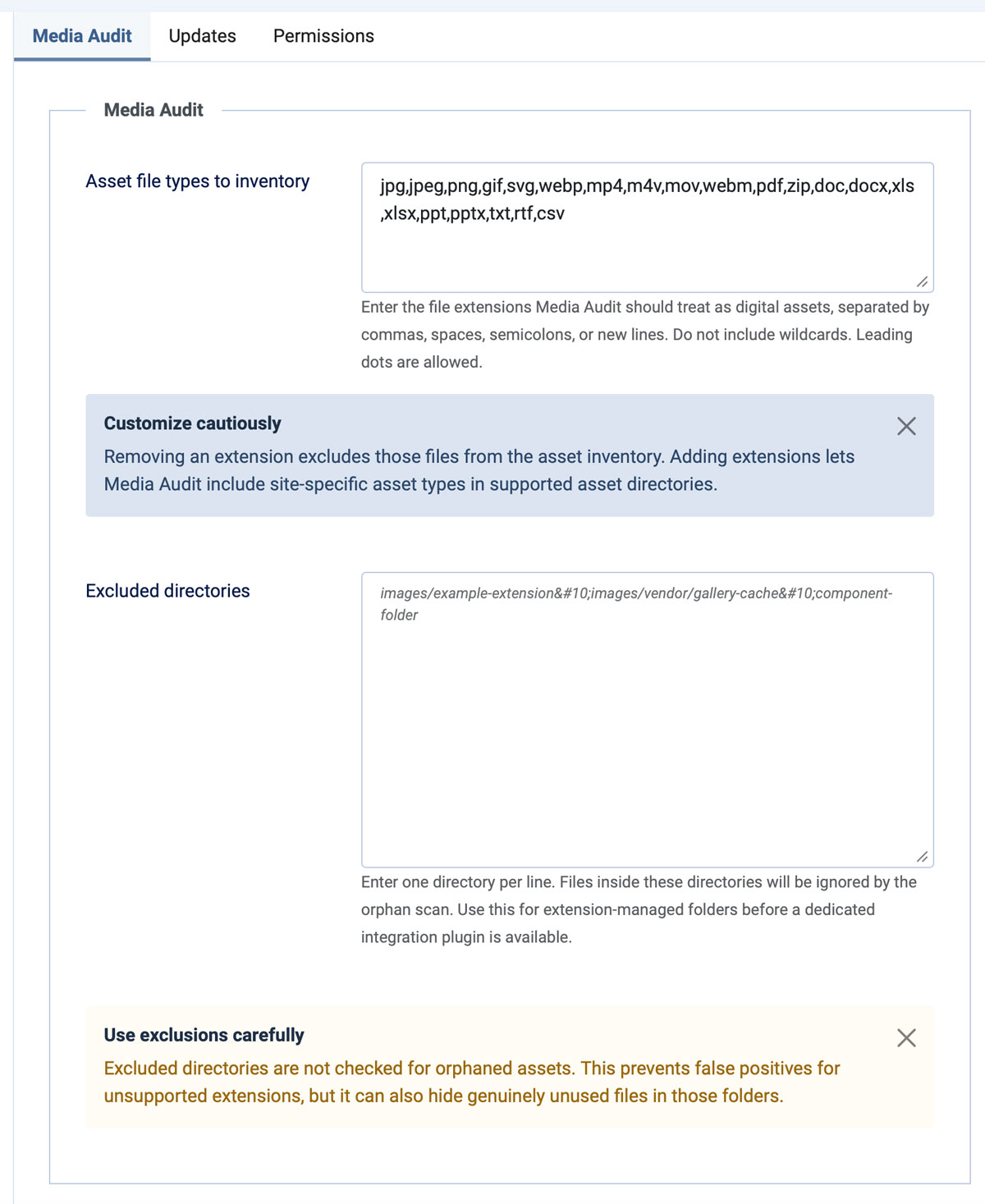
The Media Audit tab of Options (Components → Media Audit Tool → Options).
Asset file types to inventory
A comma-, space-, semicolon-, or newline-separated list of file extensions that Media Audit Pro™ treats as digital assets. Anything with an extension not on this list is invisible to the inventory and the orphan scan — it's simply never looked at. Leading dots are allowed but not required, and wildcards are not supported.
The shipped default covers the file types real sites actually reference:
jpg, jpeg, png, gif, svg, webp, mp4, m4v, mov, webm, pdf, zip, doc, docx, xls, xlsx, ppt, pptx, txt, rtf, csv
Excluded directories
One directory per line. Any file inside a listed directory is skipped by the orphan scan — Media Audit Pro™ won't flag anything in it as unused, regardless of whether it's actually referenced anywhere.
This is the escape hatch for extension-managed folders that don't yet have a dedicated Analyzer: point Media Audit Tool™ away from a third-party component's working directory, gallery cache, or vendor-managed upload folder until (or unless) a proper integration plugin exists for it.
2. Updates tab
This tab holds the one setting that connects your installation to licensed update checks.
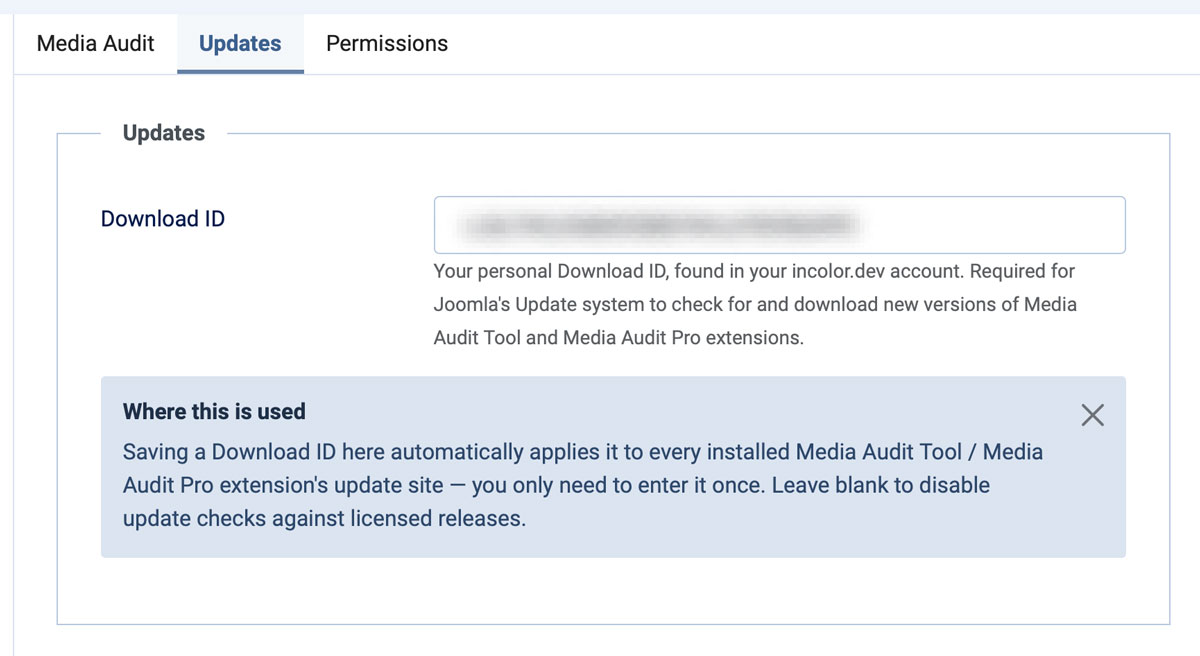
The Updates tab of Options (Components → Media Audit → Options).
Download ID
Your personal Download ID, found in your incolor.dev account. Joomla's Update system uses this to authenticate download requests, so it can check for and retrieve new versions of Media Audit Tool/Pro extensions from the licensed update stream.
3. Permissions tab
The standard Joomla ACL permissions tab, unchanged from Joomla's normal component behavior — it sets which user groups can access Media Audit's admin screens and actions. Media Audit does not add any custom permission actions beyond Joomla's defaults.