

The Dashboard
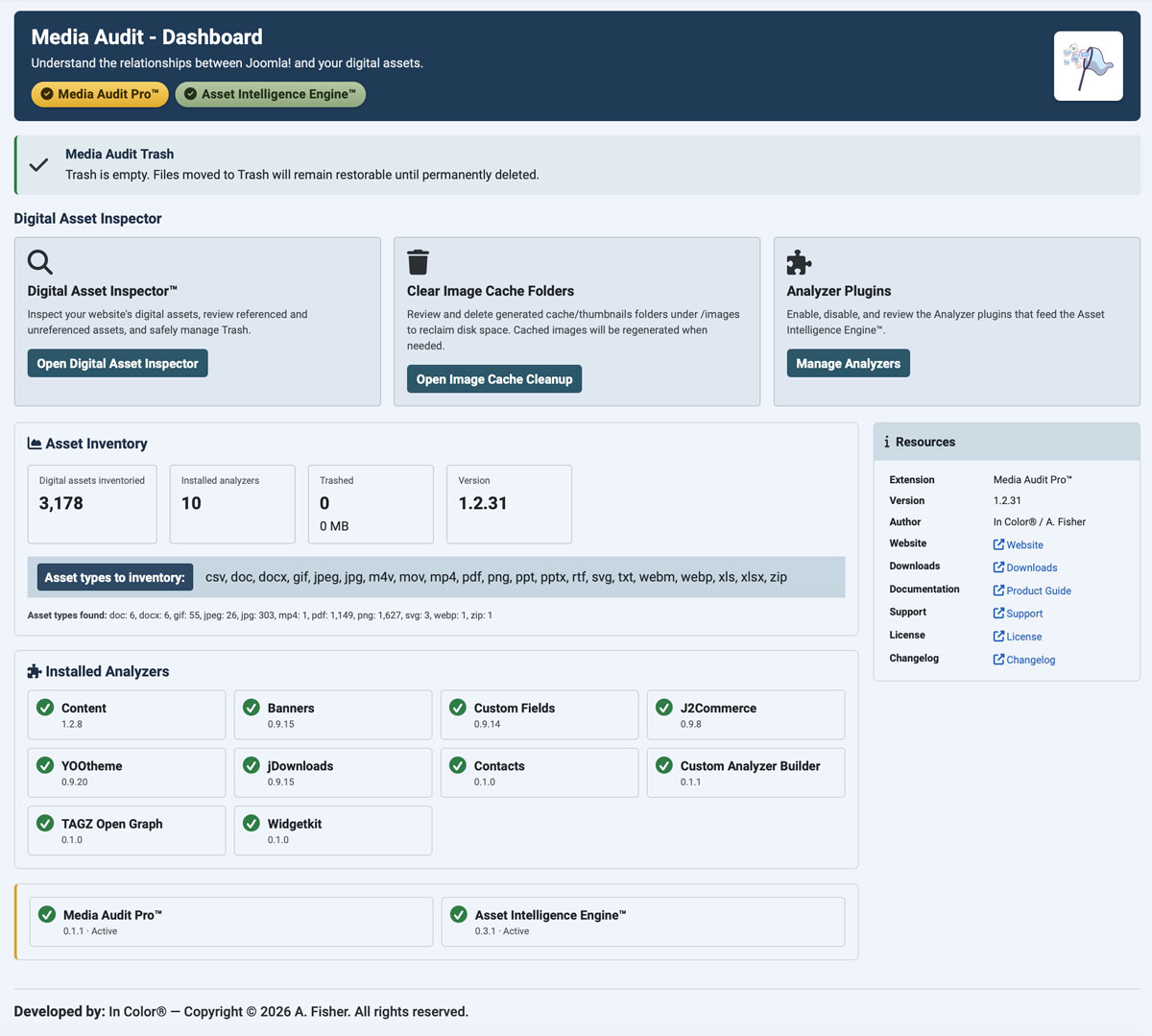
The Dashboard is Media Audit's home screen, found under Components → Media Audit → Dashboard in the Joomla Administrator. It gives you a snapshot of your site's digital assets and quick links into every other part of Media Audit.
Edition Badges
You can see which edition of Media Audit you're running by checking the Dashboard's title bar.
An installed, published, and properly functioning Media Audit Pro™ plugin will activate the gold MAP badge. Likewise, an installed, published, and properly functioning Asset Intelligence Engline™ plugin will activate the green AIE badge. Version numbers for these two plugins are reported in the tiles at the bottom of the page. Note that if they are installed but unpublished, that will be indicated in the bottom tiles. These tiles are clickable to take you directly to their plugin page.
Trash Notice
If Media Audit currently has assets in its Trash, a banner appears near the top of the Dashboard showing how many files are trashed, their combined size, and the folder they're stored in (for example, /media/com_mediaaudittool/trash). Trashed files remain on your server, and may still be included in backups, until you permanently empty the Trash. Click Open Trash to review or restore them.
Digital Asset Inspector
Three cards give you one-click access to Media Audit's main tools:
- Digital Asset Inspector™ — inspect your website's digital assets, review what's Referenced versus Unreferenced, and safely manage the Trash.
- Clear Image Cache Folders — review and delete generated cache/thumbnail folders under
/imagesto reclaim disk space. See Clear Image Caches for more important details about this. - Analyzer Plugins — enable, disable, and review the Analyzer plugins that feed Media Audit's asset scanning algorithms.
Asset Inventory
This panel summarizes the current state of your media library:
- Digital assets inventoried — the total number of assets Media Audit has scanned and cataloged.
- Installed analyzers — how many Analyzer plugins are currently enabled.
- Trashed — the number of files currently in the Media Audit Trash and their combined size.
- Version — the installed version of Media Audit.
Below the summary, Asset types to inventory lists every file extension Media Audit is configured to scan for (for example, csv, doc, docx, gif, jpeg, jpg, m4v, mov, mp4, pdf, png, ppt, pptx, rtf, svg, txt, webm, webp, xls, xlsx, zip). Asset types found beneath it breaks down how many of each type currently exist in your inventory. This list can be modified in the component's Options (button in upper-right corner)
Installed Analyzers
This section lists each Analyzer plugin that's installed, along with its version and a status indicator showing whether it's enabled. Depending on which extensions are installed on your site, you may see Analyzers such as Banners, Content, Custom Fields, J2Commerce, YOOtheme, and jDownloads. Use Manage Analyzers above to change which ones are active. These tiles are clickable to take you directly to the Analyzer's plugin page.
If the Asset Intelligence Engine™ (AIE) is installed, it appears as a green badge in the title bar and in a tile below the Analyzer list, showing its version and Active status.
Resources
The Resources panel on the right side of the Dashboard shows key details about your installation — the extension name, version, and author — along with quick links to the Website, Downloads, Documentation (Product Guide), Support, License, and Release Notes.