

Digital Asset Inspector™
The Digital Asset Inspector™ is where you review your site's media in detail and decide what to do with it. It's found under Components → Media Audit → Digital Asset Inspector™ in the Joomla Administrator.
Like the Dashboard, a Trash notice banner appears at the top if MAP currently has files in Trash, showing the file count, size, storage path, and a shortcut to Open Trash.
How "Unreferenced" Is Determined
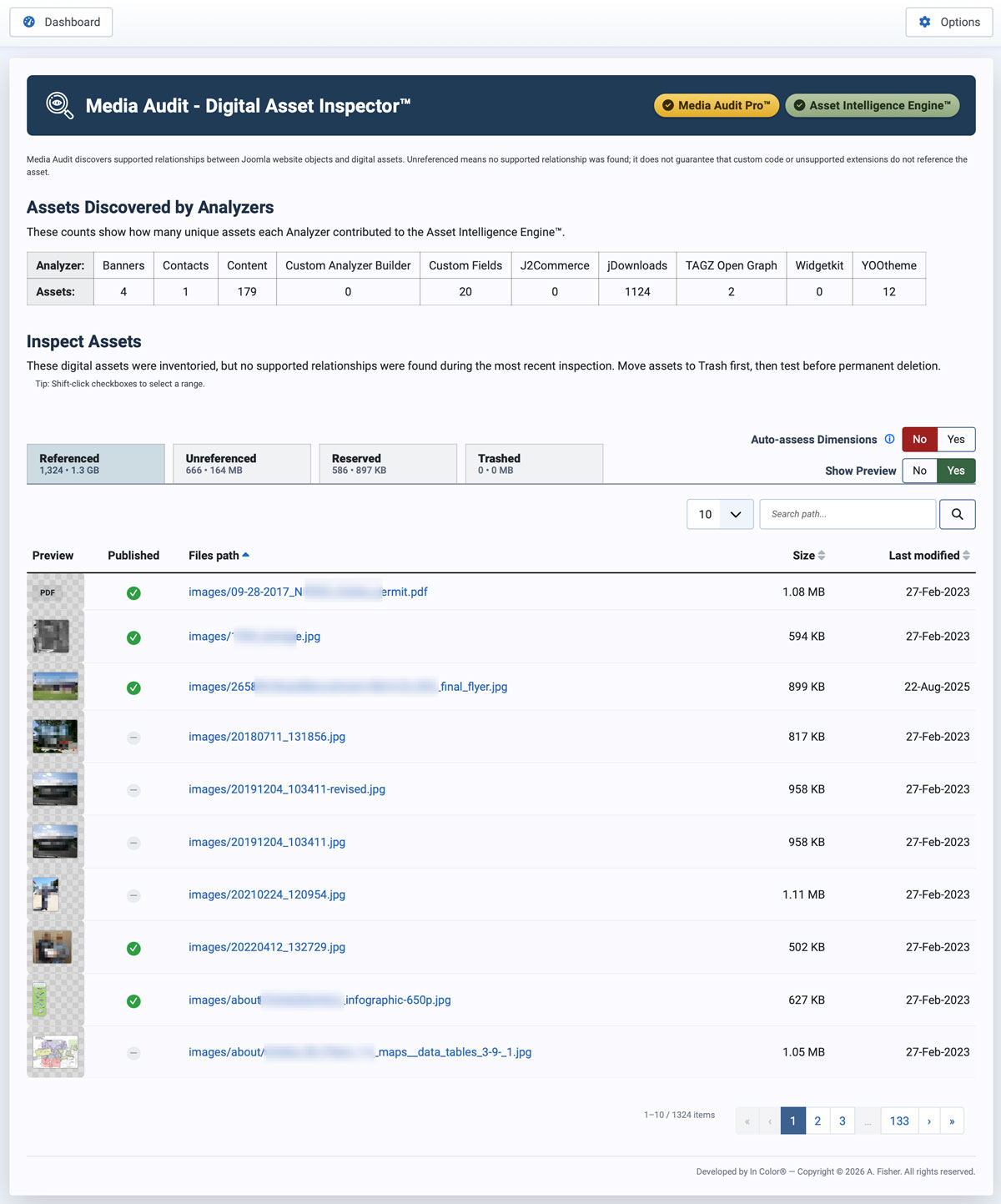
MAP discovers supported relationships between Joomla website objects and digital assets. "Unreferenced" designates that no supported relationship was found — it does not guarantee that custom code or unsupported extensions don't reference the asset. Always examine an asset before permanently deleting it.
Assets Discovered by Analyzers
This table shows how many unique assets each installed Analyzer contributed to the Asset Intelligence Engine™ — for example, how many assets the Content Analyzer found referenced in articles, or how many the jDownloads Analyzer found referenced in downloads. It's a quick way to see which Analyzers are doing the most work on your site, and to spot one reporting zero when you'd expect otherwise (a sign it may need to be enabled or isn't compatible with how that extension is configured).
Inspect Assets
The main asset list is organized into four tabs, each showing a count and total size:
- Referenced — assets MAP found in active use through a supported relationship.
- Unreferenced — assets that were inventoried but had no supported relationship found during the most recent inspection. Move these to Trash first, then test your site before permanently deleting anything.
- Reserved — assets reserved by third-party extensions as part of their own interface, such as icons or UI graphics. These aren't necessarily referenced in your content, but removing them could break an extension's admin or front-end display, so MAP sets them apart from ordinary Unreferenced assets.
- Trashed — assets you've already moved to the MAP Trash.
Tip: shift-click checkboxes in the list to select a range of files at once.
List Controls
- Auto-assess Dimensions — when enabled, MAP calculates each asset's actual rendered dimensions as part of inspection. This is more thorough but takes longer, so it's off by default.
- Show Preview — toggles whether a thumbnail preview appears next to each file in the list.
- Items per page and a path search box let you narrow down a large list.
Each row shows a preview, the file's path (click to sort), its size, and when it was last modified — both Size and Last modified are sortable as well.
Taking Action
Select one or more files with the checkboxes, then use:
- Move selected to Trash — the safe option. Trashed files can be restored to their original path at any time.
- Delete selected files — permanently removes the selected files. Use this only after you've moved assets to Trash and confirmed through testing (and, ideally, an audition period) that no links to images on the site are broken.